
Add Table Wizard
A guided wizard that suggests relationships, metrics, relevant columns, and SQL queries when you add a table — so you can build a fully connected model in one step.
Adding a table used to be step one in a longer manual process — then came the work of wiring up relationships, adding metrics, writing example queries, and deciding which columns mattered, all by hand. The Add Table Wizard does that work for you.
How it works
The moment you select a table, Solid scans your existing model and your warehouse query history to surface everything connected to it:
| Asset | What Solid suggests |
|---|---|
| Relationships | Join paths connecting the new table to tables already in your model |
| Metrics | Pre-built metrics that reference the table's columns |
| SQL queries | Example SQL patterns from your query history that use this table |
| Columns | The specific columns needed to support the suggested metrics and relationships |
You review the suggestions grouped by category, check or uncheck individual assets, then click Add. The table lands in your model fully connected — relationships wired, metrics attached, example queries in place.
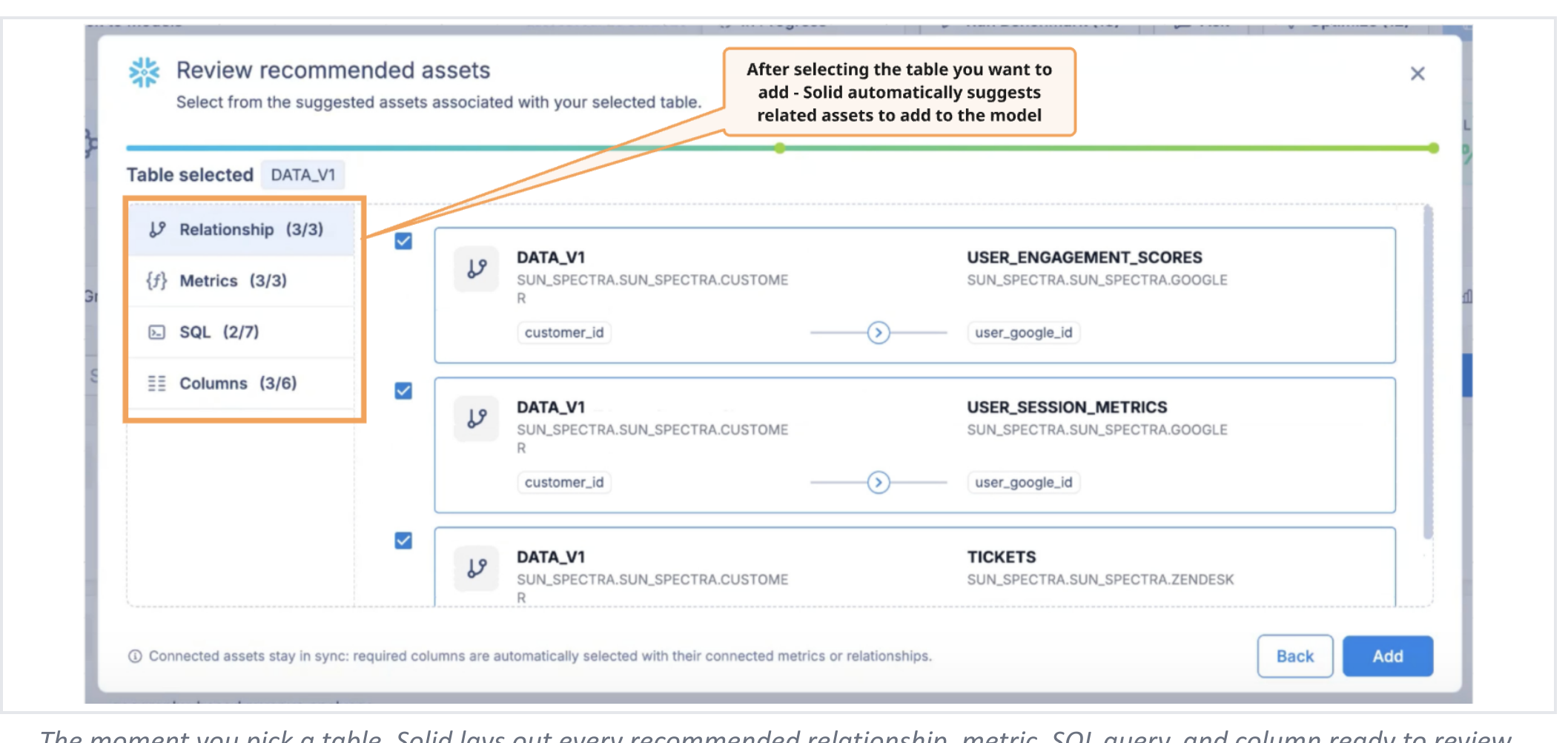
Drilling into suggestions
Each category (Relationships, Metrics, SQL, Columns) is expandable. Within Columns, you can see exactly which metrics or relationships each column supports — so nothing gets added blind. Required columns are automatically selected when their metric or relationship is included.
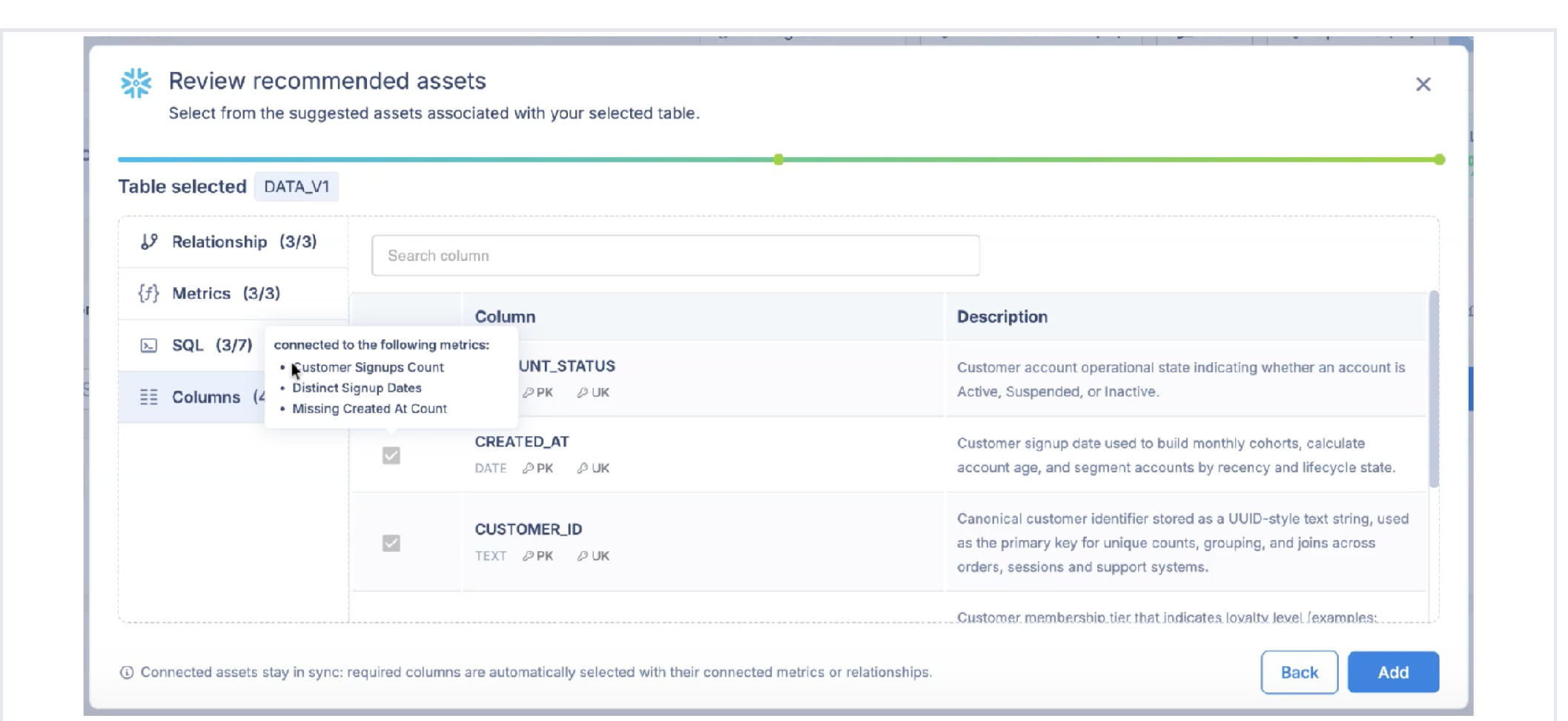
Connected assets stay in sync
When you accept a suggested metric or relationship, the columns it depends on are automatically included — even if you didn't select them manually. Connected assets stay together, so the model is never left in an inconsistent state.
Less guessing, fewer gaps
Without the wizard, adding a new table requires knowing in advance which joins, metrics, and queries are relevant to it. The wizard removes that knowledge requirement by surfacing the right assets from your actual query history — not from documentation or assumptions.
Coming soon
Solid will also suggest new benchmark questions the moment you add a table. This closes the loop from new data all the way to validated accuracy, without any additional steps.
Updated about 2 months ago