
Uploading Metadata to Azure Storage
The metadata you retrieved can be shared with the Solid team through a blind Azure Storage.
Once you are provided a SAS URL for Azure Storage, you can upload all of the metadata collected using the various means described below. This Azure Storage is "blind", meaning that once you upload the content there, you cannot see it any more. Only Solid personnel will have access to it through the secure means described in Solid's SOC 2 Type II report.
Prerequisites
- A SAS URL, provided by Solid to you.
- The collection of all required metadata, per the list provided to you by Solid.
Option 1 - Azure Storage Explorer (GUI)
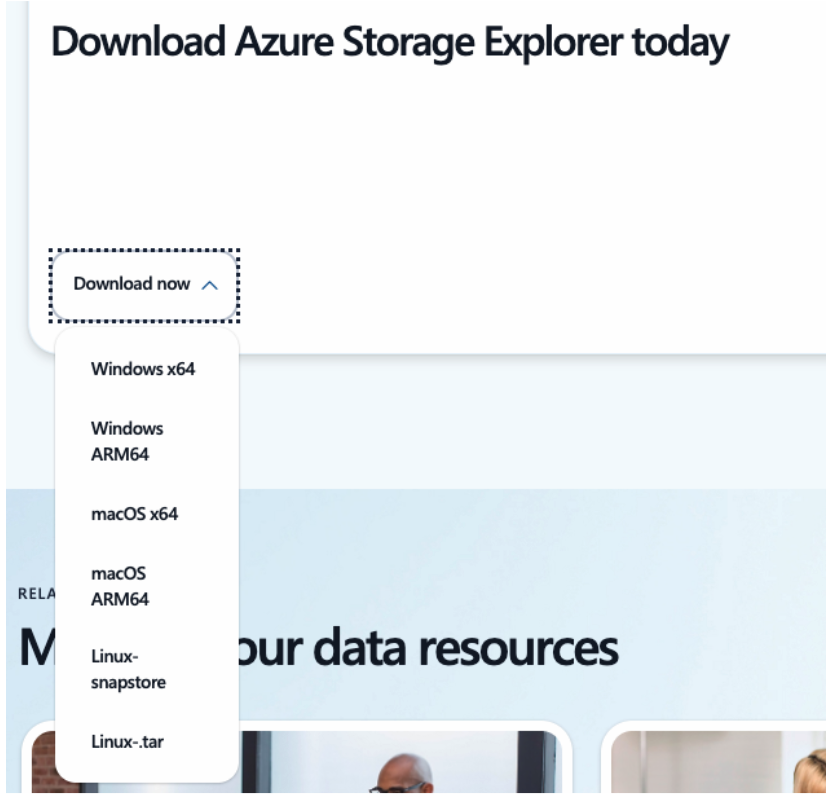
Download Azure Storage Explorer
- Visit the Azure Storage Explorer official page.
- Select the appropriate version for your operating system (Windows, macOS, or Linux).
- Download and install the application by following the installer prompts.
Connect to a Blob Container
- Launch Azure Storage Explorer.
- In the Explorer panel, click the Connect icon or use the menu to select File > Connect to Azure Resources.
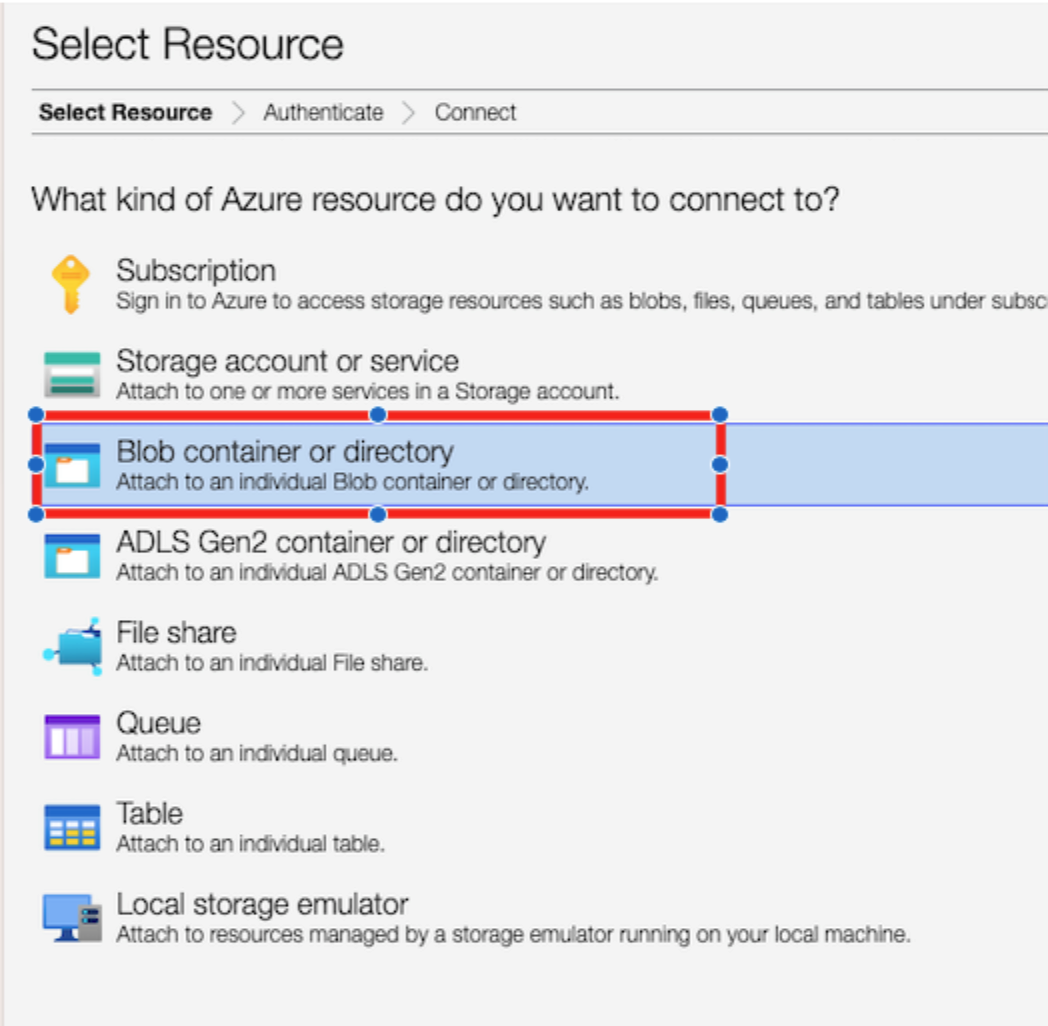
- Choose the Shared Access Signature (SAS) URI option.
- Paste the SAS connection string provided by Solid.
- Click Next, confirm the connection details, and then click Connect.
- The connected storage account and its containers will appear in the Explorer panel. You can upload files into the Blob container.
Option 2 - AzCopy (Command-Line Tool)
- Download and install AzCopy for your operating system.
- Use the Copy CLI command:
azcopy copy "<local_file_path_or_folder>" "<blob_sas_url_provided_by_Solid>"Option 3 - Azure CLI (Command-Line Tool)
az storage blob upload \
--sas-token "<blob_sas_url_provided_by_Solid>" \
--account-name "mystorage" \
--container-name "mycontainer" \
--name "uploaded_file.txt" \
--file "/home/user/data/file.txt"
Updated about 2 months ago
Did this page help you?